 FRTOL
- Open FRTOL on Wi-FiAgree to the terms. The speech model downloads once (about 630 MB).
- Allow the MicrophoneIt only listens while you hold the talk button.
- Tap StartYou're 5 nm south of Gloucestershire at 2,100 ft.
- Hold to TalkFollow the suggested first call on the message card.
- Read BackFinish with your callsign. Tap End for a debrief.
01Welcome
FRTOL is a radio flight simulator for student pilots preparing for the UK Flight Radiotelephony Operator's Licence. You fly a simple simulated aircraft while an AI air traffic controller talks to you in proper UK phraseology (CAP 413). The controller listens to what you say and checks your read-backs, and an instructor coaches you as you go.
You set a heading, altitude and speed (or follow a route), and the aircraft flies itself. That keeps your attention on the radio, which is the point.
A quick tour of the app before you start. New to RT? Our free FRTOL guides cover the practical test, read-backs and the official CAA material.
02Getting Set Up
First Launch
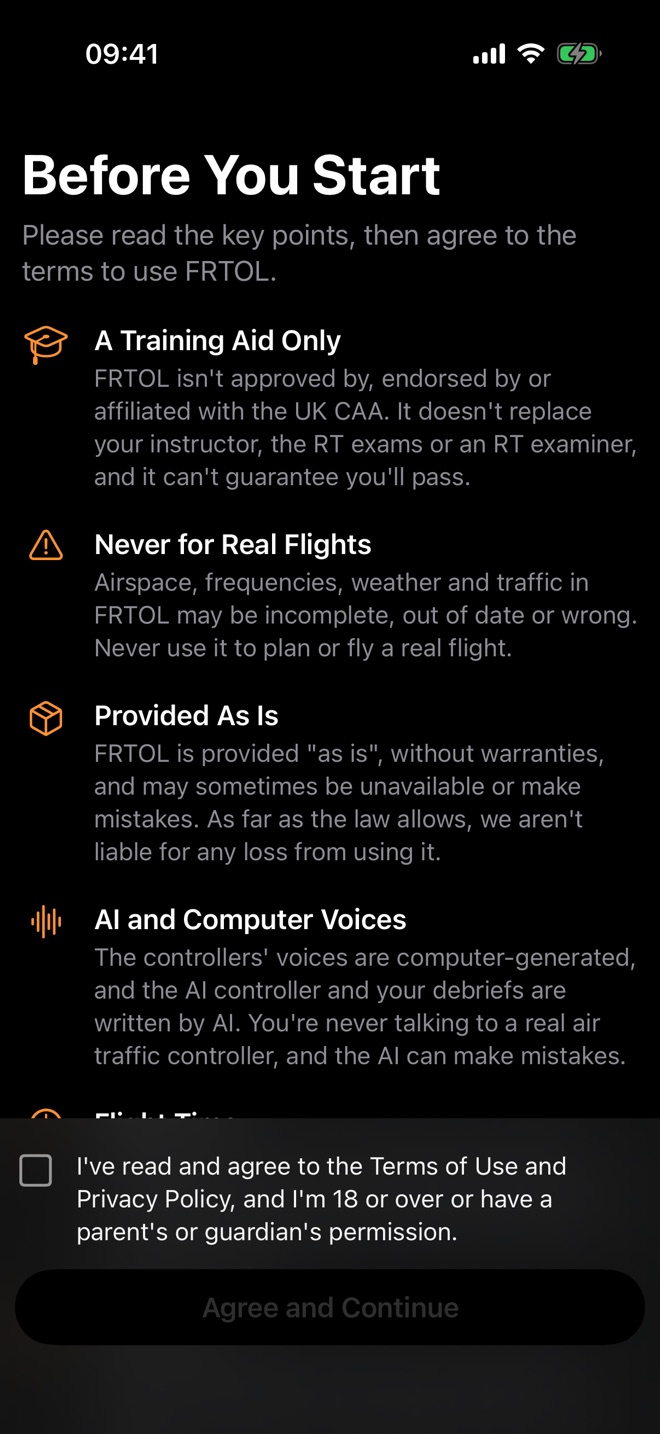
Read and agree to the terms. The first time you open FRTOL, it shows the key points: FRTOL is a training aid, not approved by the CAA, never for real flights, and provided as is. Tick the box and tap Agree and Continue. If you're under 18, a parent or guardian must agree for you.
Connect to Wi-Fi. On first launch the app downloads its speech-recognition model (about 630 MB). It's a one-off download, after which recognition works without signal. Until it's ready, the iPhone's own dictation is used, which is less accurate.
Allow the microphone when asked. FRTOL only listens while you hold the talk button.
Allow Speech Recognition if asked. It's only used as a fallback while FRTOL's own speech model gets ready.
Allow local network access if you turn on the nav app feed. It's needed to send your position to SkyDemon and the others.
Check progress in Settings › Speech Recognition. The Speech Model row shows Downloading with a percentage, then Loading and warming up… (a few minutes the first time), then Ready. If it says Couldn't set up, tap Try Again.
Flight Time
FRTOL is free to download, and every new install comes with 10 minutes of flight time. Flight time pays for the parts that run on the FRTOL server:
Natural Voices
- Adds
- Natural UK and Irish controller and pilot voices, a different one for each speaker.
The AI Controller
- Adds
- Understands unusual calls (reroutes, zone transits, weather requests, plain English) and answers like a real controller.
Your Debrief
- Adds
- A score out of 10 after each flight, with the exact phrase to use for each mistake.
- The clock only runs while a flight is running, by the started minute. Tap Pause (II) and it stops. Your minutes left show in the top bar next to a clock; tap them to open the Flight Time screen. With no minutes left, Start opens the Flight Time screen instead.
- Top up on the Flight Time screen: 1 hour (£5.99), 5 hours (£24.99, recommended) or 12 hours (£49.99). You pay through the App Store. Minutes never expire.
- If you run out mid-flight, the flight pauses and the Flight Time screen opens. Top up and tap Resume to carry on where you were.
- Invite a Friend. The Flight Time screen shows your code and a Share button. When a friend enters your code and then buys flight time, you get 10 free minutes. The screen shows how many friends haven't bought yet. If a friend sent you their code, enter it in Friend's code and tap Use Code. Codes can only be entered soon after installing, and the number of free minutes from invites is capped.
- There's no sign-in. FRTOL doesn't ask for your name, email or a password. On a new phone, or after reinstalling, tap Settings › Flight Time › Restore Purchases to bring back the time you bought with your Apple Account. Restore is on the Flight Time screen too.
- Without a connection, FRTOL still works with the built-in controller and iPhone voices, and no flight time is used.
Without signal, FRTOL uses the iPhone's own voices. For better ones, download voices in iPhone Settings › Accessibility › Spoken Content › Voices › English. Choose several UK and Irish voices marked Enhanced or Premium (they're free), then restart FRTOL.
Your Aircraft and Start Point
- Settings › Aircraft › Registration is your callsign. The default is G-JJER, spoken "Golf Juliett Juliett Echo Romeo".
- Settings › Start Position picks the airfield. You start airborne 5 nm south of it, 2,000 ft above it, heading north. Turn on Start on the Ground to begin parked at the airfield instead.
03The Cockpit
Everything is on one screen. From top to bottom: the top bar, the flight display, the COM radios, the transponder, the audio panel, the message card, the autopilot controls and the talk button.
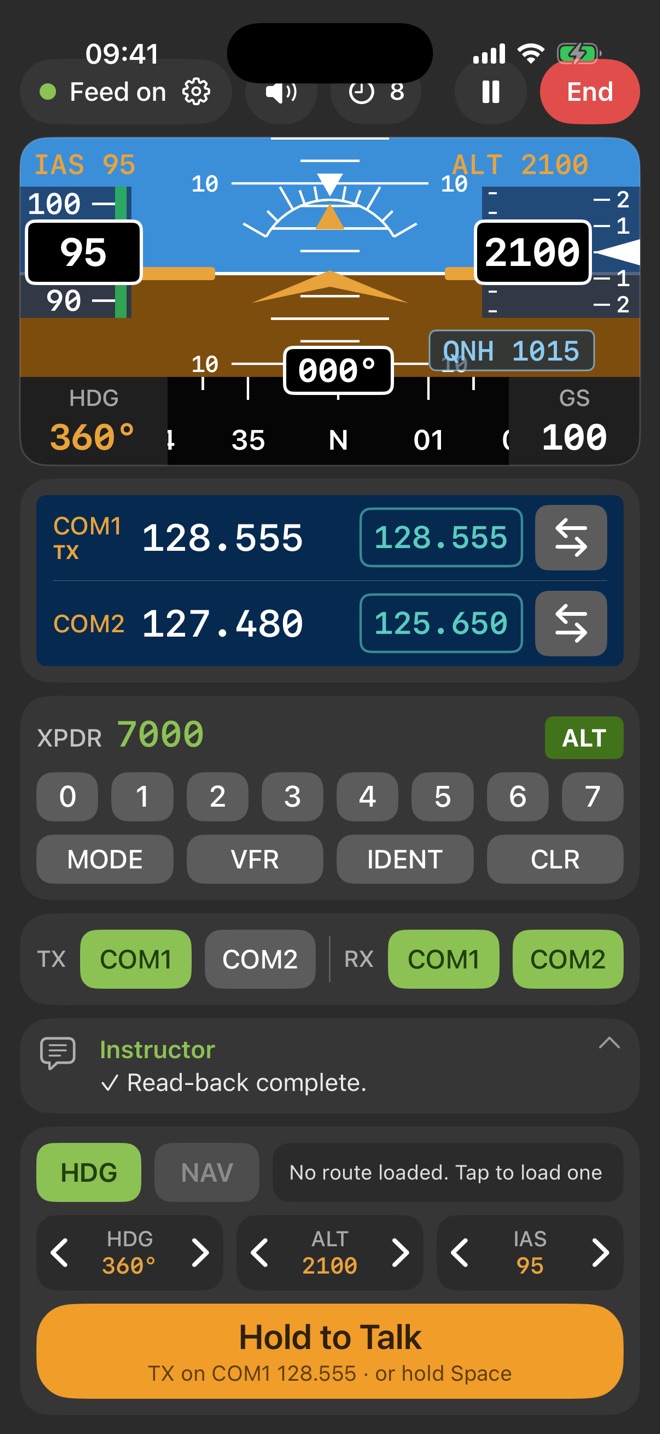
| Part | What it does |
|---|---|
| Top bar | The nav-app feed light (green when sending; tap it for Settings), the speaker menu (volume, squelch, radio effect, CAP 413 digits), your minutes left (tap for Flight Time), Route and Start. While flying: Pause (II) and End. While paused: End and Resume. Once you're flying, open the route from the route box. |
| Flight display | Attitude, speed tape (IAS), altitude tape with vertical speed, heading strip, QNH and groundspeed (GS). The amber figures at the top are your selected speed and altitude. |
| COM radios | COM1 and COM2, each with an active frequency (white) and a standby (teal). Tap a standby frequency to type a new one on a keypad: trailing zeros fill in for you, so 1 2 4 6 sets 124.600, and 8.33 kHz channels work too. Choose Set Standby, or Set and Make Active to swap it in straight away. ⇆ swaps standby and active. TX marks the radio you transmit on. |
| Transponder | Type a four-digit squawk with keys 0–7. VFR sets 7000, IDENT identifies, MODE cycles SBY, ON and ALT, and CLR cancels a part-typed code. |
| Audio panel | TX: the radio you transmit on (one at a time). RX: the radios you listen to. Both can be on, for example COM2 on the ATIS while you talk on COM1. |
| Message card | The latest transmission, or a suggested first call. Tap it for the full transcript. Instructor hints are green, your calls amber, and stations cyan. |
| Autopilot | HDG flies the selected heading and NAV follows a loaded route. ‹ › change heading (5°), altitude (100 ft) or speed (5 kt); tap a number to type it. A Taxi, Take off or Land button appears when you need it. The box next to HDG and NAV shows your route or phase of flight; tap it to open the flight plan. |
| Hold to talk | Press and hold while you speak, then release. With a keyboard connected, hold Space. It shows Transmitting… while held and Listening back… while your call is transcribed. |
If you key the mic while someone else is transmitting on your frequency, your call is blocked and the controller asks you to say again, just as on a real frequency.
04Your First Flight
The first time you open FRTOL, it offers a Guided First Flight: about five minutes that walk you through the cockpit, the ATIS, a radio check, your first call and a read-back, showing the exact words to say and moving on as you do each one. It's free and uses no flight time. You can run it again any time from Settings › Learn › Guided First Flight.
This example starts near Gloucestershire. Your frequencies may differ, so follow the suggested call on the message card.
Listen to the ATIS. COM2 is already tuned to the departure ATIS. Note the information letter, runway, wind and QNH.
Tune the approach unit. COM1's standby is preset to it. Tap ⇆ to make it active. To set any other frequency, tap the standby frequency and type it in.
Tap Start, then hold to talk for a radio check and your initial call.
YouGloster Approach, Golf Juliett Juliett Echo Romeo, radio check one two eight decimal five five five.
Gloster ApproachGolf Juliett Juliett Echo Romeo, Gloster Approach, readability fife.
YouGloster Approach, Golf Juliett Juliett Echo Romeo, request Basic Service.
Gloster ApproachGolf Juliett Juliett Echo Romeo, Gloster Approach, pass your message.
YouGolf Juliett Juliett Echo Romeo, PA-28, from Gloucestershire to Oxford, five miles south of Gloster, altitude two thousand one hundred feet, VFR, information Juliett.
Gloster ApproachGolf Echo Romeo, roger, Basic Service, squawk seven tree six tree, QNH one zero two two.
Read back the service, squawk and QNH, finishing with your callsign. Here the QNH was missed, so the controller corrects it.
YouQNH missedBasic Service, squawk seven three six three, Golf Echo Romeo.
Gloster ApproachGolf Echo Romeo, NEGATIVE, QNH one zero two two.
YouQNH one zero two two, Golf Echo Romeo.
Instructor✓ Read-back complete.
Set the squawk on the transponder (7363 here). If you don't, the controller will say "check squawk".
Fly. Change heading or altitude, listen to other traffic, and give position reports when asked.
Leave the frequency when you're done.
YouGolf Echo Romeo, request frequency change to London Information one two four decimal six.
Gloster ApproachGolf Echo Romeo, Basic Service terminated, squawk seven thousand, frequency change approved.
YouSquawk seven thousand, changing to London Information, Golf Echo Romeo.
Tap End. You get a debrief: a score out of 10, what went well, and each mistake with the exact phrase to use instead.
05Talking to ATC
Which Unit to Call
| Unit | What it gives you |
|---|---|
| Approach or Radar | A Basic Service or, if you ask, a Traffic Service, with a squawk and QNH. |
| Tower | Instructions and clearances: taxi, take-off, joining and landing. |
| Information (AFIS) | Information only. Take-off and landing are "at your discretion". |
| Radio (air/ground) | Passes information only, such as the runway in use, wind and known traffic. |
| London Information | A Basic Service en route, on 124.600 or 125.475. |
| London Centre | Emergencies, practice Pans and training fixes on 121.500. |
What the Controller Checks
- Your callsign. Without one you hear "Station calling…, say again your callsign". Once the controller shortens it (G-JJER becomes G-ER, "Golf Echo Romeo"), you may use the short form too.
- Read-backs. Squawk, QNH, service type, runway, clearances and frequencies must be read back. Anything missing gets "negative" plus the correct item.
- Call order. Full details go in this order: callsign and type, from and to, position, level, then flight rules and intentions (CAP 413 3.31).
- The ATIS. Confirm the ATIS letter on first contact ("information Juliett").
- Standard words. Say "changing to", not "switching to"; "affirm", not "affirmative"; "traffic not sighted", not "looking".
Realistic Radio Behaviour
- Range. Units far away, or below your radio horizon, won't hear you. If nobody answers, check the frequency and your range.
- Signal strength. Distant stations sound weaker and hissier, and a radio check tells you your readability.
- Busy controllers sometimes say "standby" and come back to you.
- Unusual calls (reroutes, zone transits, weather requests, plain English) are handled by the AI controller. It only uses real facts (live weather, real airspace, your actual squawk), and its coaching only flags clear departures from CAP 413.
Controllers use CAP 413 pronunciation: TREE (3), FIFE (5) and NINER (9). Altitudes and whole thousands use "thousand" and "hundred" ("two thousand fife hundred feet", "squawk seven thousand"), and frequencies are read digit by digit with "decimal". Prefer "three" and "five"? Turn off CAP 413 digits in the speaker menu.
06Ground, Circuits and Landing
Turn on Settings › Start Position › Start on the Ground. You start parked at the airfield, lined up for the runway that suits today's real wind. Start on the Ground is ignored while a route is loaded.
Tap Start, tune the aerodrome unit (Tower, Information or Radio), and do a radio check.
Ask to taxi. A Tower replies "taxi to holding point runway two two, QNH …", which you read back. AFIS and air/ground units give information instead.
Tap Taxi. You reach the holding point in about 45 seconds.
Call "ready for departure". A Tower gives "runway two two, cleared for take-off, surface wind …", which you read back. AFIS says "take off at your discretion".
Tap Take off. The aircraft accelerates, lifts off at 65 kt and climbs to 2,000 ft above the airfield.
Fly the circuit. Call downwind (a Tower gives your number and "report final"), then final ("cleared to land", or from AFIS "land at your discretion").
Land. Within 2 nm of one of FRTOL's start airfields and below about 1,200 ft above it, a Land button appears. Call "vacated" after landing. A Taxi button appears again.
07Routes and NAV Mode
- From your nav app. In SkyDemon, ForeFlight or Garmin Pilot, share the route and choose FRTOL. Or save it to Files and use Route › Import a Route File. SkyDemon .flightplan, Garmin .fpl and .gpx files are read.
- Demo route. Route › Load the demo route (EGBJ to EGTK).
- With a route loaded you start at its first waypoint. NAV mode steers along it and corrects for wind drift. The route box shows the next waypoint and the distance to it.
- Switch to HDG at any time to fly your own headings, for example when ATC gives you one.
08SkyDemon, ForeFlight and Garmin Pilot
FRTOL can send your simulated position, and traffic, to your navigation app, just like a SkyEcho or other portable ADS-B receiver. Your practice flight then appears on the moving map, with real airspace.
In FRTOL, open Settings › Navigation App Link, choose your app, turn on Send Position, and set It's Running On to This device. If the nav app is on another iPad or iPhone, choose Another device and enter its IP address.
Leave GDL 90 (SkyEcho Style) on. XGPS (Simulator Style) is an alternative some apps accept.
In the nav app's GPS or device settings, choose a GDL 90 / ADS-B device, as you would for a SkyEcho.
Tap Start in FRTOL, then switch to the nav app. FRTOL keeps sending in the background, and you still hear ATC.
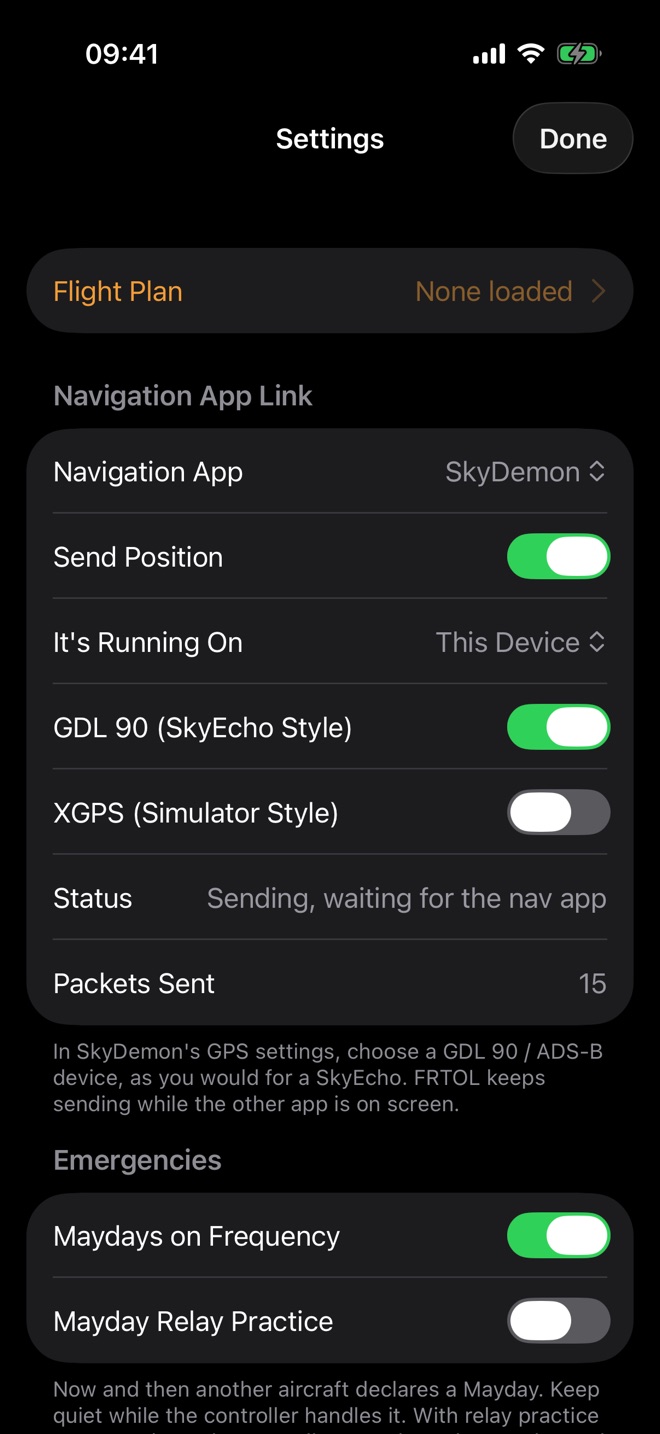
When it's working, the feed light in the top bar is green (with "Feed to" and your app's name when there's room), and Settings counts the packets sent.
09Weather and ATIS
- Live Weather. Weather comes from live METARs and refreshes every 20 minutes. Airfields without a METAR use the nearest station's.
- The ATIS for each airfield is built from its real weather: observation time, runway in use (chosen into wind), wind (including calm, variable and gusts), visibility or CAVOK, cloud, temperature, dew point and QNH. The letter moves on when a new observation comes in.
- Wind. The aircraft flies in the real wind, so your track and groundspeed differ from your heading and airspeed.
- Pressure. The flight display shows the QNH of the nearest airfield.
- Other airfields. Ask a controller for a nearby airfield's weather and the AI controller reads you its real METAR. This needs a connection and flight time.
The weather status is in Settings › Weather. Without signal, practice weather is used.
10Airspace Warnings
FRTOL downloads all UK airspace and checks it as you fly. Warnings come from the instructor, in green on the message card.
| Situation | What happens |
|---|---|
| About 3 nm from controlled airspace | For a CTR, CTA, TMA or airway (class A–D): a warning with its limits and the unit to call. Ask for a transit, or turn away. |
| Inside it without a clearance | Infringement. Under a radar service, the controller tells you to turn immediately to leave. Otherwise the instructor flags it with the controlling frequency. |
| A MATZ up to 8 nm ahead | A reminder to call for a MATZ penetration at least 15 nm or 5 minutes before. |
| An ATZ up to 3 nm ahead | Talk to the aerodrome before entering, or stay outside. |
| A danger or restricted area | Check whether it's active (DAAIS) before flying through. |
| A prohibited area | Don't enter. Turn away. |
If a controller clears you to transit, the clearance is remembered for 20 minutes, so you won't get infringement warnings in that time. Transit clearances come from the AI controller, so they need a connection and flight time. Warnings only run while you're flying.
11Traffic
- Simulated Traffic. Several light aircraft fly around you, and they're the ones talking on frequency, giving their real positions, for example "five miles west of Stow-on-the-Wold, altitude one thousand six hundred feet".
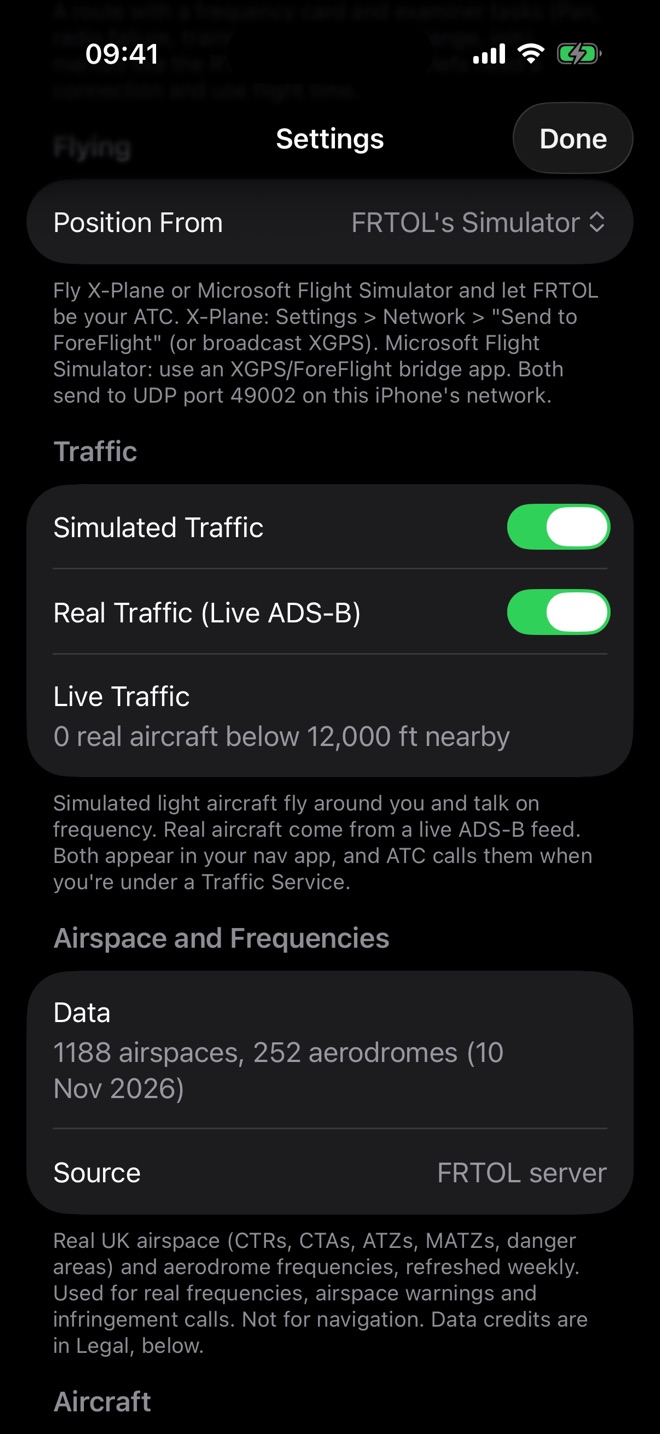
- Real Traffic. Real aircraft below 12,000 ft within about 25 nm come from a live ADS-B feed and are added when available.
- In your nav app. Both kinds appear in SkyDemon and the others, like traffic on a SkyEcho.
- Traffic Service. Ask a radar unit for one ("request Traffic Service") and the controller calls relevant traffic in CAP 413 form.
Golf Echo Romeo, traffic two o'clock, four miles, crossing right left ahead, indicating tree hundred feet above.
Traffic not sighted, Golf Echo Romeo.
Traffic in sight, Golf Echo Romeo.
Turn simulated or real traffic off in Settings › Traffic.
12Emergencies
Your Own Mayday or Pan
Use the standard order: Mayday (or Pan Pan) three times, the station, your callsign and type, the problem and your intentions, position, level, heading, your qualifications, and the number of people on board (POB).
Mayday Mayday Mayday, Gloster Approach, Golf Juliett Juliett Echo Romeo, PA-28, engine failure, forced landing, three miles north of Cheltenham, passing one thousand five hundred feet, heading three six zero, student pilot, one POB.
Golf Juliett Juliett Echo Romeo, Gloster Approach, roger Mayday, squawk seven seven zero zero if able, report intentions.
London Centre on 121.500
- Practice Pan: "Pan Pan, Pan Pan, Pan Pan, London Centre, … practice Pan, …". London Centre acknowledges and tells you your position.
- Training fix (uncertain of your position): "London Centre, Golf Juliett Juliett Echo Romeo, request training fix." You're given your position relative to the nearest town, and your altitude.
Maydays from Other Aircraft
- With Maydays on Frequency on (Settings › Emergencies), another aircraft occasionally declares a Mayday. Stay silent while the controller handles it.
- With Mayday Relay Practice on, sometimes the controller can't hear the Mayday. You have about 45 seconds to relay it: "Mayday relay, Mayday relay, Mayday relay, …, following received from …".
Radio Failure
Squawk 7600 and start any calls with "transmitting blind". The mock exam includes a radio failure.
13Mock RT Exam
Modelled on the practical test: you fly a route with a frequency card while the examiner sets tasks. New to the test? Read our free guide to the practical test and watch the practical exam prep video first.
Open Settings › Exam Practice › Start a Mock RT Exam.
Read the brief: a route from your start airfield to another one via a reporting town, at 2,500 ft, plus your frequency card. During the exam, tap the route box to see the card again.
Tap Start Exam, then Start. You start overhead the departure airfield at 2,500 ft with the route loaded.
EXAMINER messages appear on the message card as you fly. Do each task on the radio.
Tap End when you're done. The debrief marks each task against the RT practical standard. You need to have made at least two calls, and a connection and flight time. The exam clock keeps running while paused.
| About | Examiner task |
|---|---|
| 1 min | Initial call to the radar unit on your card, asking for a Basic Service. |
| 6 min | Rough-running engine: change to 121.500 and make a practice Pan to London Centre. |
| 11 min | Radio failure: your transmitter is dead for 3 minutes, so squawk 7600 and transmit blind. When it's restored, tell the controller. |
| 15 min | Uncertain of position: ask London Centre for a training fix. |
| 19 min | Frequency change to your destination's unit. |
| 23 min | Call your destination and join the circuit. |
Settings › Your Progress lists every debrief, with your scores over time and the mistakes that keep coming up.
Without signal, the exam and its tasks still run, but there's no marking at the end.
Short Drills
Two to five minutes on one skill, for quick practice between full flights. Open Settings › Learn › Drills, pick one, and FRTOL places the aircraft, sets the task and marks your calls. Drills are free and use no flight time. Results go into Your Progress.
| Drill | What you practise |
|---|---|
| Mayday Call | Engine failure: a full Mayday call and squawk 7700. |
| Practice Pan on 121.5 | A rough-running engine: a practice Pan to London Centre. |
| Radio Failure | Your transmitter has failed: squawk 7600 and transmit blind. |
| Zone Transit | Ask to cross a control zone, and read back the clearance. |
| Overhead Join | Take the ATIS, request an overhead join, report overhead and downwind. |
| Frequency Change and Position Report | Leave a radar unit, change to London Information and report your position. |
14Desktop Flight Simulators
Fly X-Plane or Microsoft Flight Simulator yourself, and let FRTOL be your ATC.
In FRTOL, set Settings › Flying › Position From to Desktop Flight Simulator.
X-Plane: in its Settings › Network, turn on Send to ForeFlight (or broadcast XGPS), on the same Wi-Fi as the iPhone.
Microsoft Flight Simulator: use a bridge app that sends ForeFlight or XGPS data over the network.
The status shows Receiving from … once data arrives on UDP port 49002. Your simulator's position, track, speed and attitude now drive FRTOL.
15Settings Reference
| Section | Settings |
|---|---|
| Flight Plan | Load, import or remove a route |
| Navigation App Link | Navigation App · Send Position · It's Running On (this device, or another device and its IP) · GDL 90 · XGPS · Status · Packets Sent |
| Emergencies | Maydays on Frequency · Mayday Relay Practice |
| Speech Recognition | Speech Model status · which engine is listening (Try Again appears if setup fails) |
| Controller Voices | Voices Available · Natural Voices Installed |
| Flight Time | Flight Time Left · Buy Flight Time · Restore Purchases · Delete My Flight-Time Account |
| Weather | Live or practice Weather status · Refresh Weather |
| Learn | Guided First Flight · Drills |
| Exam Practice | Start a Mock RT Exam · Your Progress |
| Flying | Position From: FRTOL's Simulator or a Desktop Flight Simulator |
| Traffic | Simulated Traffic · Real Traffic (Live ADS-B) · Live Traffic status |
| Airspace and Frequencies | Airspace data status and source |
| Aircraft | Registration (your callsign) |
| Start Position | Start on the Ground · start airfield |
| Legal | Terms of Use · Privacy Policy · Cookies and other policies · Credits and Licences |
| Speaker menu | The speaker button in the top bar opens Radio: volume · Squelch Noise · CAP 413 digits (tree, fife) · Radio Effect (Off, Light or Strong) |
16RT Quick Reference
A short reminder. For the full detail see the aviation phonetic alphabet guide and the CAP 413 phraseology guide.
Phonetic Alphabet
Numbers (CAP 413)
| Written | Said |
|---|---|
| 128.555 | one two eight decimal fife fife fife |
| 2500 ft | two thousand fife hundred feet |
| FL55 | flight level fife fife |
| QNH 1013 / 1000 | QNH one zero one tree / QNH one thousand |
| Squawk 4512 / 7000 | squawk four fife one two / squawk seven thousand |
| Heading 045 | heading zero four fife |
| Runway 26 | runway two six |
| 3, 5, 9 | TREE, FIFE, NINER |
Must Be Read Back
Squawk codes, pressure settings (QNH or QFE), the runway in use, headings, levels and altitudes, frequencies, clearances (take-off, landing, transit, conditional) and the type of service. Finish with your callsign.
Transponder Codes
Standard Words
- Roger
- I have received all of your last transmission.
- Wilco
- I will comply.
- Affirm
- Yes.
- Negative
- No, or that's not correct.
- Say again
- Repeat your last transmission.
- Standby
- Wait and I will call you.
- Changing to
- I'm leaving this frequency for another.
- Traffic in sight
- I can see the traffic. "Traffic not sighted" if you can't.
17Troubleshooting
| Problem | Try this |
|---|---|
| "Nothing was heard" | Hold the button for the whole call, start speaking after pressing, and speak close to the phone. Very quiet or very short calls are ignored on purpose, so the app never invents words. |
| Calls are misheard | Check Speech Recognition says Ready and is listening with FRTOL's speech model. Speak at a steady pace, and use your full callsign until the controller shortens it. |
| Nobody answers | Check the frequency (COM1 or COM2 active, and TX on the right radio), that you're in range, and that it isn't an ATIS frequency. The instructor hints if no station is on that frequency. |
| "Say again" to unusual calls | Check your internet connection and flight time left, or use standard phraseology. |
| Voices sound robotic | Natural voices need a connection and flight time. Without them, download Enhanced or Premium UK voices in iPhone Settings. |
| Nothing in SkyDemon | Turn on Send Position, choose a GDL 90 device in SkyDemon, allow local network access for FRTOL (iPhone Settings › FRTOL), and tap Start. |
| No flight time packs | The App Store isn't reachable. Check your connection and that In-App Purchases are allowed in iPhone Settings › Screen Time. |
| Flight time missing on a new phone | Sign in to the App Store with the same Apple Account, then tap Settings › Flight Time › Restore Purchases. |
| No airspace warnings | Check Airspace and Frequencies shows the data loaded. The first download needs a connection. |
| "Debrief unavailable" | Check your internet connection and flight time left. A debrief needs at least two calls in the flight. |
18Important Notes
FRTOL helps you practise radiotelephony. It isn't approved by the UK CAA and doesn't replace your instructor, the RT written exam or the practical test with an RT examiner.
Airspace, frequency, traffic and weather data may be incomplete or out of date. Always use official sources (the UK AIP, current charts and official weather) for real flights.
Phraseology follows CAP 413, the UK Radiotelephony Manual. For the full terms, privacy information and data credits, see Legal.